Plug it in, connect Wi‑Fi or Ethernet, add devices, sign in, and calibrate.
You can do this in one calm afternoon. I have set up dozens of living room and bedroom TVs for friends, family, and clients. This guide shows you How to Set Up a Smart TV at Home with clear steps, simple checks, and real tips that save time. If you want a smooth start, better picture, solid sound, and strong privacy, keep reading.

What You Need Before You Start
A little prep makes the job fast and stress free. Gather these items so you are not running back and forth.
- Your TV, remote, and fresh batteries
- Stable internet via Ethernet cable or Wi‑Fi password
- HDMI cables rated for your gear; use Ultra High Speed HDMI for 4K120
- Power strip with surge protection
- A microfiber cloth and tape for cable labels
- Your accounts and passwords for the TV platform and apps
Have a plan for placement and power. Avoid a tight shelf that traps heat. Check the VESA mount size if you plan to wall mount. This checklist is the first step in How to Set Up a Smart TV at Home.

Unbox, Place, and Protect
Open the box from the top and lift the TV with two people if it is large. Keep the screen facing soft foam. Do not grip the panel; hold the frame.
Pick a spot with little glare and close outlets. Leave space behind the TV for airflow. If you wall mount, hit wall studs and use the right bolts. A level helps. When learning How to Set Up a Smart TV at Home, safe handling and smart placement come first.

Connect Power and Devices
Do the core hookups before the on‑screen setup. Neat cables make life easy later.
- Plug the TV into a surge protector.
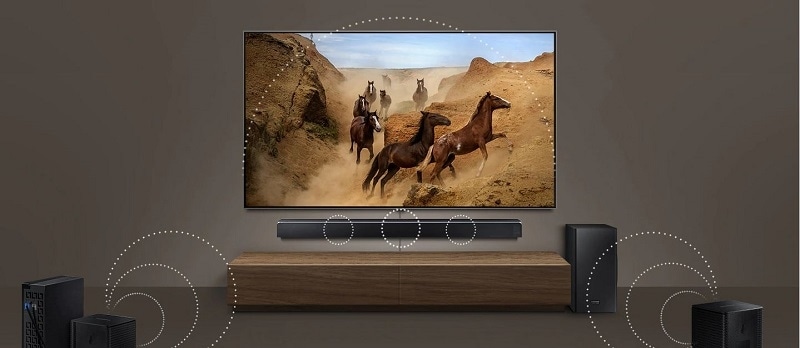
- Use HDMI 1 for a soundbar with eARC or ARC if your TV marks it.
- Connect your streaming box or console to HDMI 2 or higher.
- If you have a cable box or antenna, attach it to the TV’s input.
- For the most stable stream, run an Ethernet cable to the router.
A key step in How to Set Up a Smart TV at Home is proper wiring. Use short, certified HDMI 2.1 cables for new consoles. Label both ends. If the soundbar has eARC, enable it later in settings. Turn on HDMI‑CEC so one remote can switch inputs and power gear.
First‑Time Setup and Network
Power on the TV. Follow the on‑screen guide. Pick your language and region. When it asks for network, choose Ethernet if wired, or select your Wi‑Fi.
Wi‑Fi tips:
- Use 5 GHz or Wi‑Fi 6 when you can for cleaner air and speed.
- Keep the router high and in the open.
- Enter the Wi‑Fi password with care. Turn on Show Password if offered.
Ethernet is rock solid for 4K and live sports. Industry tests show lower latency and fewer drops. For How to Set Up a Smart TV at Home, solid internet is half the job.

Accounts, Sign‑In, and Apps
Most TVs run Google TV, Fire TV, Roku, Tizen, or webOS. Sign in to the platform account to unlock apps, backups, and voice.
Do this next:
- Sign in or create your TV platform account.
- Install core apps like Netflix, Prime Video, YouTube, Disney+, and your live TV app.
- Turn on auto‑updates for apps and system.
- Set up profiles and parental controls if you have kids.
Part of How to Set Up a Smart TV at Home is clean sign‑in with strong passwords. Use a password manager or the phone pairing flow with a QR code to type less and avoid errors.
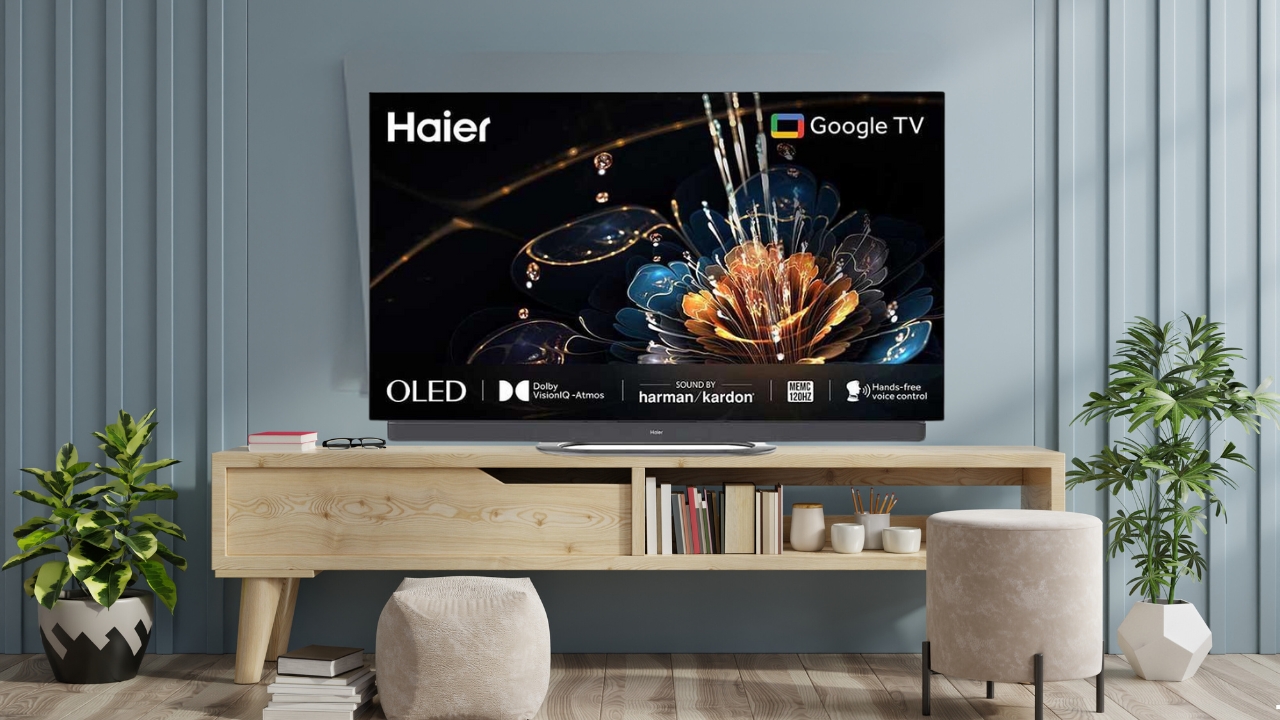
Picture and Sound Calibration
Picture presets are a fast win. Start with Movie, Filmmaker Mode, or Cinema for the most accurate image. Avoid Vivid. It looks bright in a store but can crush detail.
Basic steps:
- Set Brightness or Backlight for your room. Day mode for light rooms. Night mode for dim rooms.
- Set Color Temperature to Warm 1 or Warm 2 for natural skin tones.
- Turn off Motion Smoothing for films. Keep it on low for sports if you like.
- For HDR and Dolby Vision, leave tone mapping on default. Raise Brightness a bit if HDR looks too dim.
Sound steps:
- If you use a soundbar with eARC, set TV Audio to Passthrough or Bitstream.
- Turn on Dolby Atmos if your bar supports it.
- Fix lip sync in Audio Delay if voices do not match mouths.
To finish How to Set Up a Smart TV at Home, tune picture and sound with care. A quick test pattern from a streaming app helps you set brightness and sharpness.
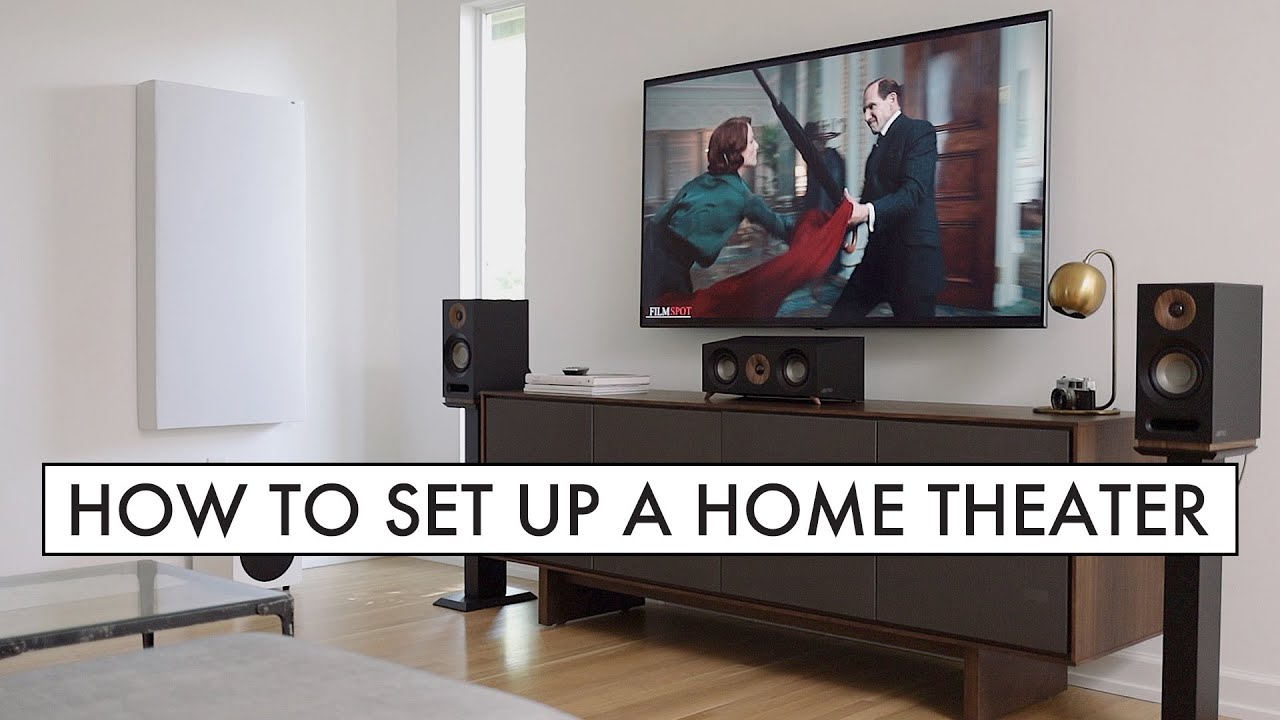
Voice, Remotes, and Control
Pair the remote with Bluetooth if asked. This unlocks voice and better range. Turn on HDMI‑CEC so the TV can control a soundbar and console. Brands call it things like Anynet+, Bravia Sync, Simplink, or HDMI Control.
If you use Alexa, Google Assistant, or Siri, link your account in settings. Then try, “Turn on TV,” or “Open YouTube.” During How to Set Up a Smart TV at Home, set voice now so you use it daily.
Privacy and Security
Smart TVs collect data unless you say no. Look for options like Viewing Data, ACR, or Interest‑Based Ads. Turn them off if you want less tracking.
Do this for peace of mind:
- Disable unused mics or cameras.
- Create a Guest profile for visitors.
- Keep firmware updated. Schedule checks monthly.
- Put the TV on a separate Wi‑Fi network if you can.
If you care about data in How to Set Up a Smart TV at Home, these steps reduce risk without losing key features. Expert reviews show that updates also patch bugs and add formats.
Gaming Settings and HDMI 2.1
For PS5, Xbox Series X, or a high‑end PC, use the HDMI port labeled 4K120 or 8K. In the TV settings, turn on Game Mode, ALLM, and VRR if your set supports them.
Console tips:
- On PS5, enable 120 Hz and VRR in Screen and Video.
- On Xbox, run “4K TV details” to confirm formats.
- Use Ultra High Speed HDMI cables for 4K120 and eARC.
Gamers asking How to Set Up a Smart TV at Home should lock these in. The result is lower lag, a smooth frame rate, and rich HDR.
Troubleshooting and Common Mistakes
If the screen reads No Signal, check the input label and cable seats. Try a new HDMI cable if the port is flaky. If Wi‑Fi drops, move the router or switch to Ethernet.
- No Atmos? Set audio to Bitstream or Passthrough and use eARC.
- HDR too dark? Raise Brightness and turn off Eco dimming.
- Overscan cuts edges? Set Picture Size to Just Scan or 1:1.
- Apps crash? Clear cache, update, then reboot the TV.
If How to Set Up a Smart TV at Home goes sideways, slow down, change one thing, then test. I once spent an hour on a “bad port” that was just a loose HDMI at the console end.
Maintenance and Upgrades
Dust the screen with a dry microfiber cloth. No sprays. Clean vents once a month. Use a surge protector or a small UPS if your area has power dips.
Stay current:
- Check for firmware updates every few weeks.
- Re‑run app logins if you change passwords.
- Add a streaming stick if your TV’s apps feel slow.
To keep gains from How to Set Up a Smart TV at Home, do small upkeep often. It saves time and keeps picture and apps fresh.
Frequently Asked Questions of How to Set Up a Smart TV at Home
Do I need Ethernet if I already have fast Wi‑Fi?
Wi‑Fi can be fine, but Ethernet is more stable for 4K and live sports. If you stream a lot, wired is worth it.
Which HDMI port should I use for my soundbar?
Use the HDMI port marked eARC or ARC on the TV. Plug the soundbar’s HDMI Out (eARC/ARC) into that exact port.
What picture mode should I choose first?
Pick Movie, Filmmaker Mode, or Cinema for accurate color. Adjust brightness and motion from there to taste.
How can I stop my TV from tracking what I watch?
Turn off ACR or Viewing Data in Privacy settings. You can also opt out of interest‑based ads and disable voice logs.
Why does my game feel laggy on a new TV?
Turn on Game Mode, ALLM, and VRR if supported. Use an HDMI 2.1 port and a certified cable for 4K120.
How do I connect a smart TV to a hotspot?
Open Network settings and choose your phone’s hotspot. Keep the phone close, and expect higher data use.
Can I wall mount any smart TV?
Yes, if the mount matches the TV’s VESA size and weight. Use wall studs and the right bolts for safety.
Conclusion
You now have a clear path for a clean, fast setup. You plugged in, connected the network, added devices, tuned picture and sound, and locked privacy. That is the heart of How to Set Up a Smart TV at Home, done with care.
Make a short checklist and follow the steps today. If you hit a snag, return to the relevant section, try one fix, and test. Share your wins or questions in the comments, and subscribe for more home tech guides and pro tips.